This morning I realized that my quasi-antique Optimus V Android had not updated for daylight savings time. A search on the internet showed numerous posts from 2010 all with the same issue and all stating that every possible fix under the sun corrected the problem. Many said to simply disable automatic time settings. Unfortunately, the version of Android installed on the Virgin Mobile phones has that option hidden.
I did find a solution and it was naturally not what was posted in any of the messages I saw. So, to add my voice to the chorus, here is my solution :
Enable the GPS radio for a few minutes
Tough one eh? I normally have my phone in Airplane mode because the building I work in is very unforgiving with radio signals and kills almost all but the most resilient of them right at the door. Thus, to preserve battery life, I leave my phone in Airplane mode and enable only the WiFi radio in order to access the network at the office. I normally have my GPS radio off all of the time to further increase battery life but I imagine that the time would have auto-corrected had I left that radio on.
For those interested, I use the Power Manager utility to manage the state of the various radios on my phone.
If you do any work with SharePoint then you probably already know about the incredibly wonderful tool that Microsoft gave us called ULS Viewer. This tool allows you to watch and filter your SharePoint logs in real-time or after-the-fact so that you can find key events.
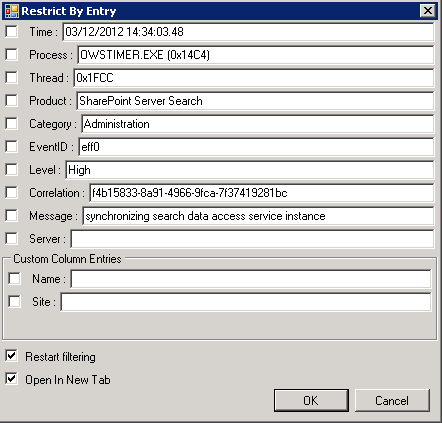
Apparently they added something else in there to be grateful for – ‘New Page By This Item’. Simply right-click on one of the entries in the list, select that option and you are presented with a dialog like the one below.
Make your selection for your filter, click ok and now you have a new tab based on that selection. If you are filtering on a past event, make sure to uncheck the ‘Restart filtering’ option so that it will pull from the current log instead of starting fresh.
Why is this so wonderful? Well, if you are doing a lot of real-time monitoring of the logs, you know how much noise there is in there, making finding critical information difficult as things scroll by so fast. So, you set up filters (usually a lot of them) to cut down on the noise. Normally, when you filter for something, i.e. a Correlation ID, you have to scrap all of your live filters so that you can see all of the entries associated with the ID. Using this method however, the tab that you are using for live monitoring continues normally but now you have a new tab that lists everything associated with just that ID.
With SharePoint 2010, the usage of the Management Shell is pretty much mandatory. However, most corporations have a policy that says something along the lines of “Do not log in with Service Accounts” with the “or else” being implied. Unfortunately, the 2010 Management Shell usually only works properly when logged in as one of the system accounts (usually the setup or farm/admin account). This means that you are left with either logging into the server as the Service Account or using the shift-right-click trick on the Management Shell link and entering the farm account information there – every time.
If your company is anything like mine, the passwords for those service accounts are often an utterly bizarre and random combination of letters, numbers, symbols and stargate coordinates. This also means that you have to go digging for that password every time that you need to use the management shell because remembering such a twisted concoction is not really an option.
There is another way that I’ve found that is better than both of the above options. Simply create a batch file (really!) and enter the commands below and then save it somewhere where you can remember it – or, better yet, create a shortcut to it on your desktop.
This file contains hidden or bidirectional Unicode text that may be interpreted or compiled differently than what appears below. To review, open the file in an editor that reveals hidden Unicode characters.
Learn more about bidirectional Unicode characters
set PSshell="C:\Windows\System32\WindowsPowerShell\v1.0\PowerShell.exe -NoExit & 'C:\Program Files\Common Files\Microsoft Shared\Web Server Extensions\14\CONFIG\POWERSHELL\Registration\\sharepoint.ps1'\""
This will start the management shell but will run it as the service account (be sure to replace ‘myDomain\ServiceAccountName’ with your service account info). Best of all, the /savecred option makes it so that you only have to enter the password the very first time you run the batch file which means no more digging around for it. (Note: the credentials are encrypted and tied to your ID on that machine so if someone else logs on and clicks the same batch file, they will be prompted for the password)
Simple and quick, and it still lets me log into the SharePoint server with my normal admin account.
Update 12/4/2012: Corrected a typo and moved the code to Gist on GitHub.
When you work with SharePoint, you end up working a lot with both GUIDs and with PowerShell. Strangely enough, the two together don’t seem to be needed very much but eventually their paths cross. GUIDs in PowerShell are amazingly simple to create but the web is chock full of misinformation and insanely complicated suggestions. I’ve even seen some folks recommend passing parameters to New-Object!
So, just for the sake of clarity, here is how to create GUIDs in PowerShell. It really doesn’t get much simpler than this!
# Create an empty GUID

   $Id = [GUID]::Empty


# Create a new GUID

   $Id = [GUID]::NewGuid()


# Create a GUID with a value

   $Id = [GUID]("b2e92f11-7f65-41d1-acec-ba051b418bdf")
There’s nothing to it but some people choose to make this so complicated.
Update – 5/31/13 – I discovered a way to make it even simpler!
I recently ran into a problem where PNG images were not being rendered properly in IE8, but only in IE8. All other browsers displayed the images properly. By “not being rendered properly” I mean that the PNGs were just slightly darker than the color they should have been, even though the image itself showed the proper color. The the image below is an example of this; the left and right areas of the tabs are just slightly darker than the middle area.
At first I thought was related to the PNG transparency not being rendered properly and figured that I would take it up with the Graphic Artist when time allowed. However, after walking away and then coming back to it, I was able to track down the real culprit: gamma correction. It seems that the gamma information is included in PNGs to allow for a more accurate rendering of graphics, but that it is ignored by most browsers – except Internet Explorer 8. A detailed explanation of the how and why of this can be found on Trevor Morris’s blog though his post was written prior to IE8, the issue was the same.
After spending some time in Paint.Net (I don’t have access to Photoshop) I was unable to come up with a way to remove the gamma from an image. The Paint.Net forums suggested copying the image information into a new image and saving that, but that did nothing. Fortunately, a bit lower in the same thread was the recommendation of a utility called “TweakPNG” and that did the trick.
All I had to do was simply save the image in my Image Editor, open it with TweakPNG, delete the gAMA information and hit Save. Now my PNGs displayed correctly, even in IE8.



 Developing Thoughts